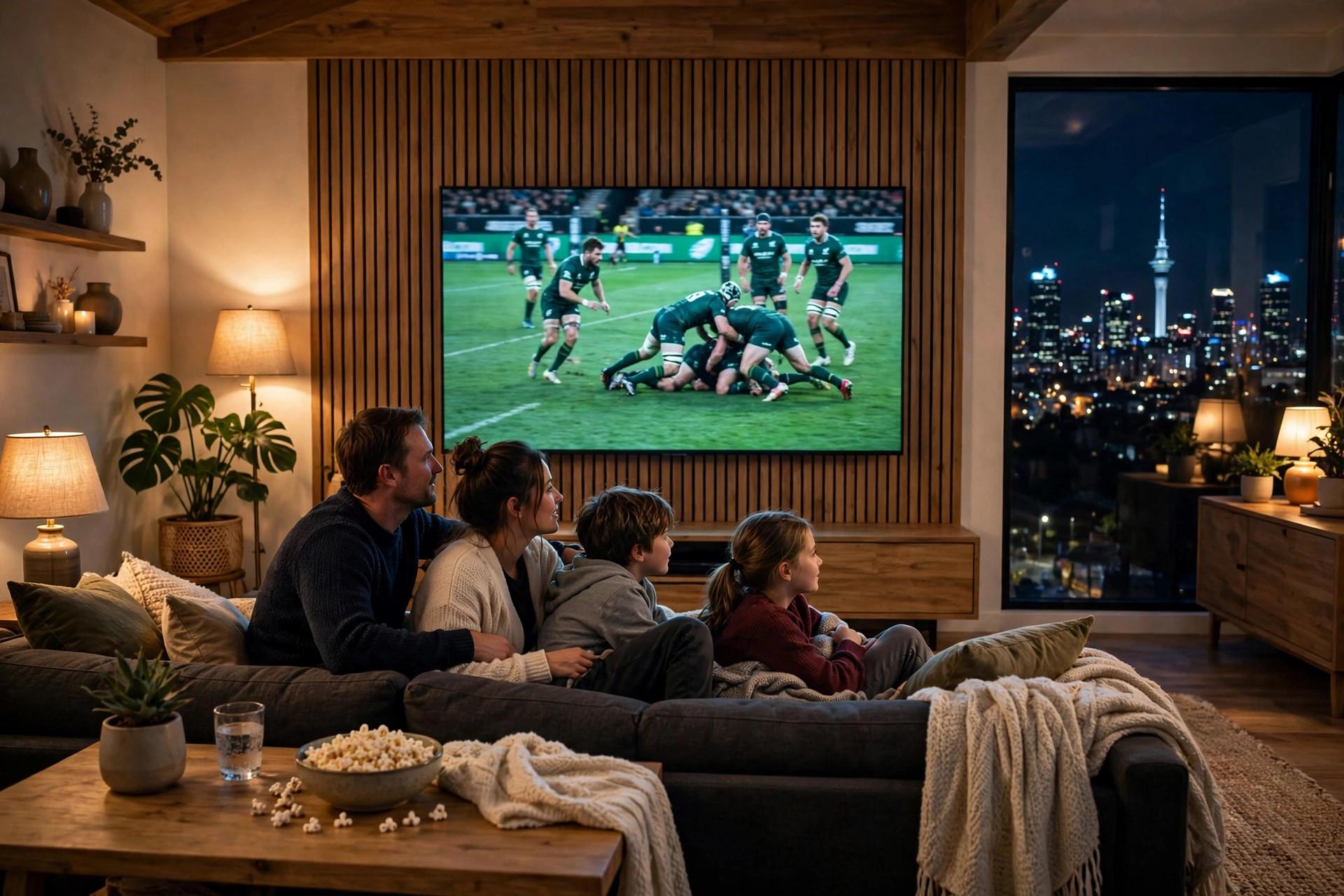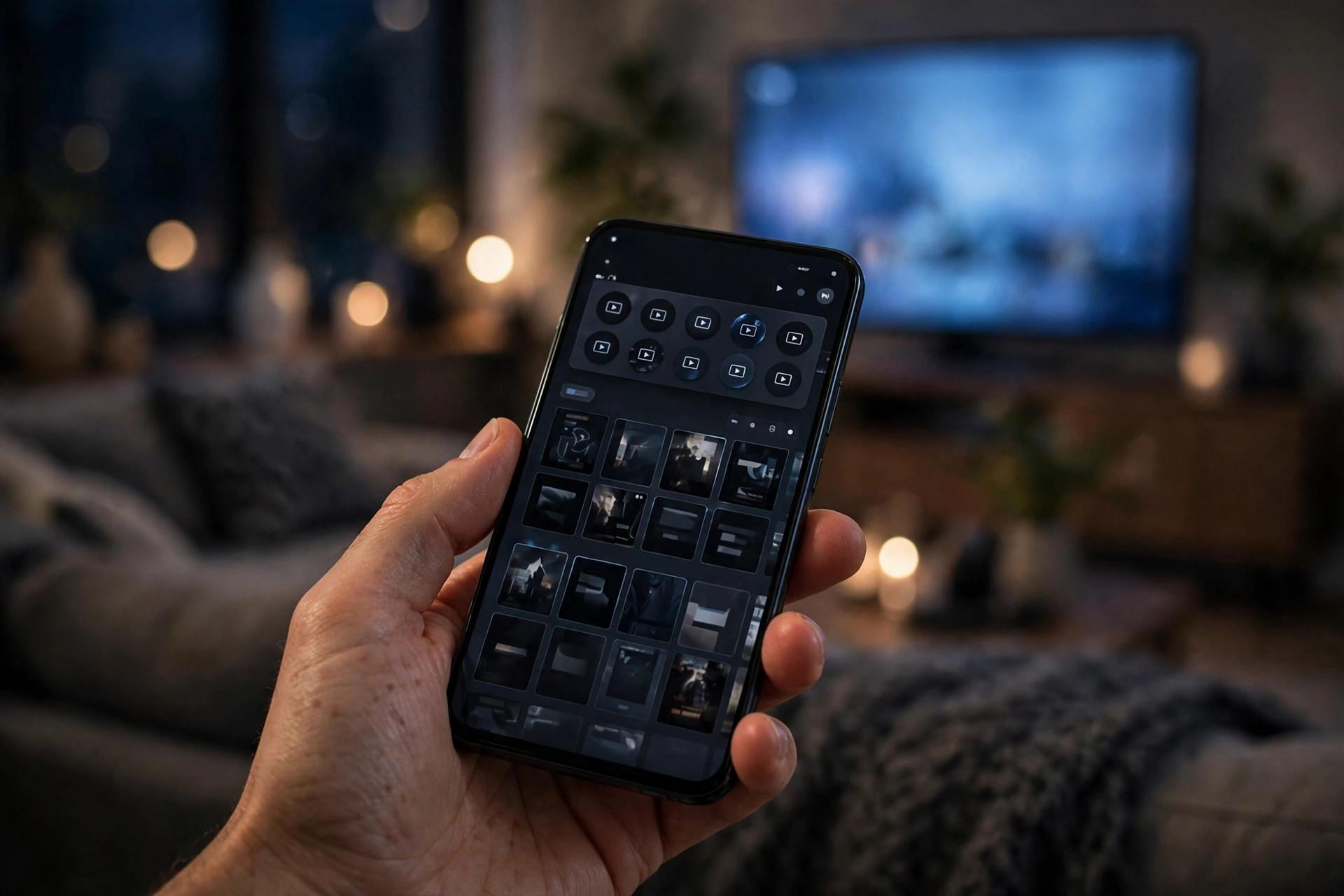
People searching for TiviMate New Zealand setup usually want one thing: the app installed, the playlist loaded and the EPG showing New Zealand time. TiviMate is the app most New Zealand IPTV users end up on, and the reason is simple: it looks like a proper TV guide, not a file browser. Channels sit in groups, the EPG shows what is on now and next, favourites are one long-press away, and catch-up works from the guide itself. On a Firestick 4K Max or an Nvidia Shield it is fast and clean; on a Sony or TCL Android TV it is the best guide you will get without a Sky box.
The setup has three parts: install the app, add the playlist, and let the EPG load. None of it is hard, but the order matters, and the login details have to be exact — one wrong character in the server URL and the playlist loads nothing. This guide covers Firestick, Android TV and the Shield, then the settings that make the guide useful for a New Zealand household.
TiviMate New Zealand Setup: Step by Step
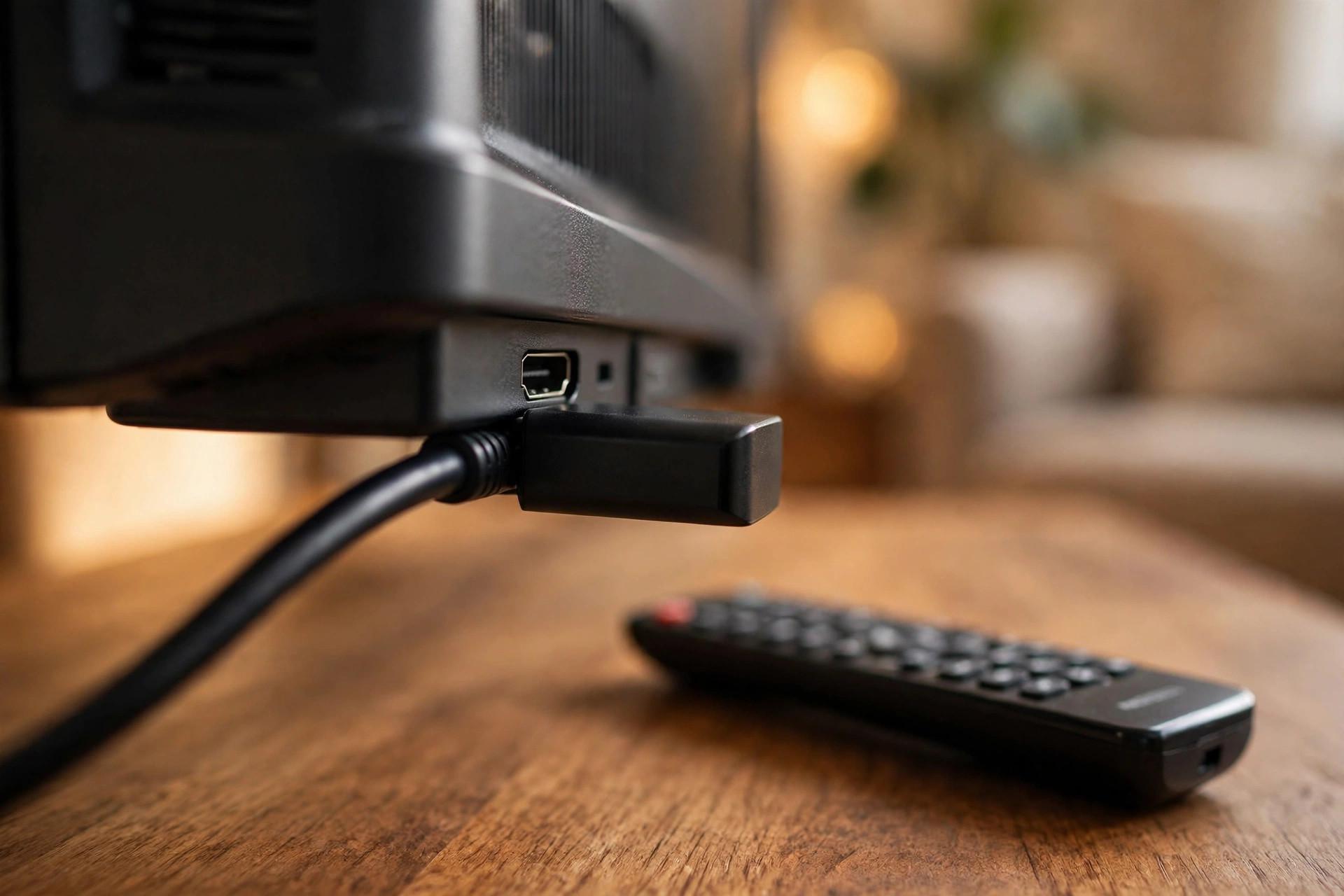
On Android TV or Google TV, open the Google Play Store, search for TiviMate, and install it. On a Firestick, TiviMate is not in the Amazon Appstore, so install the Downloader app first, then use it to load the TiviMate APK from the official site — or ask support on WhatsApp and they will send the exact link. Open TiviMate, choose Add Playlist, then Xtream Codes login.
Enter the three details exactly as they arrive on WhatsApp: the server URL, the username and the password. Tap Next and wait — the playlist and the EPG take two to five minutes on first load, depending on the size of the channel list. Do not close the app while it loads. When it finishes, the guide shows Sky Sport NZ, TVNZ 1, Three and the rest, grouped and ready. If you use IPTV Smarters Pro instead, the login is the same three details.
TiviMate settings that matter for NZ viewers
Turn on the EPG update first: Settings, then EPG, then Update on app start. Set the EPG time offset to New Zealand time — the guide should show 7:05 pm for a Saturday match, not 5:05 pm. Then set the default group to Favourites, so the app opens on the channels you actually watch instead of the full list of 57,000.
Add your favourites now, while you are thinking about it: long-press Sky Sport 1, Sky Sport 4 for the NRL, TVNZ 1 and Three, and add them all. Set the player to the hardware decoder for the smoothest 4K on a Firestick, and turn on auto frame rate if your TV supports it — it stops the judder on a fast rugby pass. Sort buffering before the weekend if the picture stutters at all.
TiviMate Premium: is it worth it in NZ?
The free version of TiviMate handles one playlist and the basics. TiviMate Premium — a one-off purchase of about $35 NZD in the Play Store, or roughly $10 a year — adds multiple playlists, catch-up, recording, favourites sync across devices and the multi-view that puts two games on one screen. For a household that watches Super Rugby and the NRL at the same time, the multi-view alone is worth it.
Buy Premium in the Play Store on the same Google account as your TV, and it follows that account to every Android TV in the house. The purchase is separate from the IPTV subscription: TiviMate is the player, 4K Media is the subscription, and the two bills are different. Compare the subscription prices separately.
TiviMate problems and fixes
Playlist loads nothing: the server URL, username or password has a typo, or the subscription is not active yet. Copy the details from WhatsApp rather than typing them, and message support if it still fails — activation takes minutes. EPG empty: the EPG source did not load, so go to Settings, EPG, and force an update, then wait two minutes.
Channels freezing at peak time is usually the connection, not the app: switch to Ethernet or 5 GHz Wi-Fi and drop to the HD feed. If the app itself is slow, clear the cache in the Android settings — never clear data, or the playlist and favourites go with it. Still stuck? Message support on WhatsApp with the device name and the error; remote help is free. Start a free trial and test TiviMate on a match night. If you are still deciding, the free 24-hour trial is the fastest way to answer the question on your own TV: start it on a Friday, watch the weekend, and decide with the evidence in front of you.
TiviMate on Firestick 4K Max
The Firestick 4K Max is the device most New Zealand TiviMate users run, and it is the pairing that works best: the fastest chip in the Firestick range, Wi-Fi 6, and a TiviMate app that is built for a remote rather than a touchscreen. The install on a Firestick is the one place where the setup differs from Android TV, because TiviMate is not in the Amazon Appstore. Install the Downloader app from the Amazon Appstore first, open it, and use it to load the TiviMate APK from the official site — or ask support on WhatsApp and they will send the exact link. Open TiviMate, choose Add Playlist, then Xtream Codes login, and enter the server URL, the username and the password exactly as they arrive on WhatsApp. One wrong character in the server URL and the playlist loads nothing, so copy the details from WhatsApp rather than typing them.
The first load takes two to five minutes, depending on the size of the channel list, and the EPG loads with it. Do not close the app while it loads. When it finishes, the guide shows Sky Sport NZ, TVNZ 1, Three and the rest, grouped and ready. The settings that matter on a Firestick are the player — set it to the hardware decoder for the smoothest 4K — and the auto frame rate, which stops the judder on a fast rugby pass if the TV supports it. Keep at least 1 GB of storage free on the Stick, because a full Firestick slows down and the EPG stops updating. The Firestick guide walks through the whole device setup, and the buffering guide covers the network checks if the picture stutters at peak time.
EPG, catch-up and recording in TiviMate
The EPG is the reason most New Zealand users end up on TiviMate, and it is worth setting up properly on day one. Turn on the EPG update first: Settings, then EPG, then Update on app start. Set the EPG time offset to New Zealand time — the guide should show 7:05 pm for a Saturday match, not 5:05 pm — and check the guide on a Friday night, when the weekend fixtures should already be listed with the kick-off times converted. The EPG shows what is on now and next for every channel, and tapping a programme shows the teams, the venue and the start time. For a household that follows Super Rugby Pacific, the NRL and the Black Caps, the EPG is the diary, and the favourites are the shortcut: long-press Sky Sport 1, Sky Sport 4 for the NRL, TVNZ 1 and Three, and add them all on day one.
Catch-up works from the guide itself in TiviMate Premium: open the EPG, find the match, and press play on the earlier time slot, and the game plays from the start. That is the feature that saves the northern tour in November, when the All Blacks kick off in the small hours, and the Premier League on a Sunday morning, when the game starts at 3:00 am and the replay is waiting at breakfast. Recording is also a Premium feature, and it needs storage — a Firestick with 16 GB fills fast, so record the match, watch it, and delete it, or use an Android TV box or a Shield with more room. The free version of TiviMate handles one playlist and the basics; Premium adds multiple playlists, catch-up, recording, favourites sync across devices and the multi-view that puts two games on one screen.
Multi-view: two games on one screen
Multi-view is the TiviMate Premium feature that New Zealand households use most, because the New Zealand sporting Saturday is built for it. A Super Rugby game on Sky Sport 1 and a Warriors game on Sky Sport 4 at the same time, an All Blacks test and an NRL game on the same Saturday night, a Black Caps T20 and a Premier League game on a Sunday morning — the household that watches two of those needs two pictures, and multi-view puts both on one screen. Open the first channel, long-press to open the multi-view, add the second channel, and the screen splits. The sound follows the channel in focus, and the remote switches between them. Two 4K streams at once need about 50 Mbps steady, so the household needs the fibre to match — a 100 Mbps plan handles it, and the fibre speed guide shows how to check the speed at the TV itself.
Multi-view works best on the bigger screen in the house, and it works best when both games matter. For a household that watches one game properly and glances at the other, the second screen is the better answer — the phone or the tablet on the other game, the TV on the main event — and the two-device Premium plan at $159.99 a year covers both screens. The habit to build is the same either way: set the favourites at the start of the season, set the reminders on Thursday night, and the weekend runs itself. The Super Rugby guide shows the round structure that makes multi-view worth having, and the NRL guide shows the league fixtures that overlap with it.
TiviMate vs IPTV Smarters Pro for Kiwi viewers
TiviMate and IPTV Smarters Pro are the two players most New Zealand households choose between, and the choice comes down to how the household watches. TiviMate is the enthusiast's player: the best EPG, the best favourites, catch-up from the guide, recording, multi-view and the cleanest layout on a big TV. It runs best on Android TV, Google TV, the Firestick 4K Max and the Nvidia Shield, and it is the player for the household that watches a lot of sport and wants the guide to work like a proper TV guide. IPTV Smarters Pro is the player for the household that just wants the rugby on without a manual: it runs on everything — Firestick, Android, iPhone, iPad, Samsung and LG Smart TV, Apple TV, Windows and Mac — and the login is the same three Xtream Codes details on every device.
The practical answer for most households is to start with one and keep the other in reserve. If the lounge TV is an Android TV or a Firestick, start with TiviMate and buy Premium in the Play Store on the same Google account as the TV — the purchase follows that account to every Android TV in the house, and it is separate from the IPTV subscription, which is a different bill. If the household watches on iPhones, iPads and a Samsung TV, start with IPTV Smarters Pro, because it runs natively on all of them. Either way, the login is identical, the channels are identical, and the free trial tests both on a match night. The Smarters Pro guide walks through the other player step by step, and the price breakdown shows what the subscription costs once the player is sorted.
The settings to check on day one, whichever player you pick, are the same four: the EPG time offset set to New Zealand time, the favourites added for Sky Sport 1, Sky Sport 4, TVNZ 1 and Three, the player set to hardware decoding, and the app updated to the latest version. Do those four, and the season runs itself.
TiviMate on the Shield and on Android TV boxes
The Nvidia Shield is the best Android TV box for TiviMate in New Zealand, because it has the fastest chip, the most storage and the best upscaling of any box in the lounge, and it handles 4K without breaking a sweat. Install TiviMate from the Google Play Store, log in with the same three Xtream Codes details, and the EPG, the favourites and the multi-view are all there on the big screen. The cheaper Android TV boxes — the generic boxes from the online stores — work too, but they are slower to open the EPG and slower to switch channels, and the remote is usually the weak point. The Sony and TCL Android TVs run TiviMate natively, with no box at all, and the voice search finds channels by name. Whichever box the household uses, the settings are the same: the EPG time offset set to New Zealand time, the favourites added on day one, the player set to hardware decoding, and the app updated to the latest version.