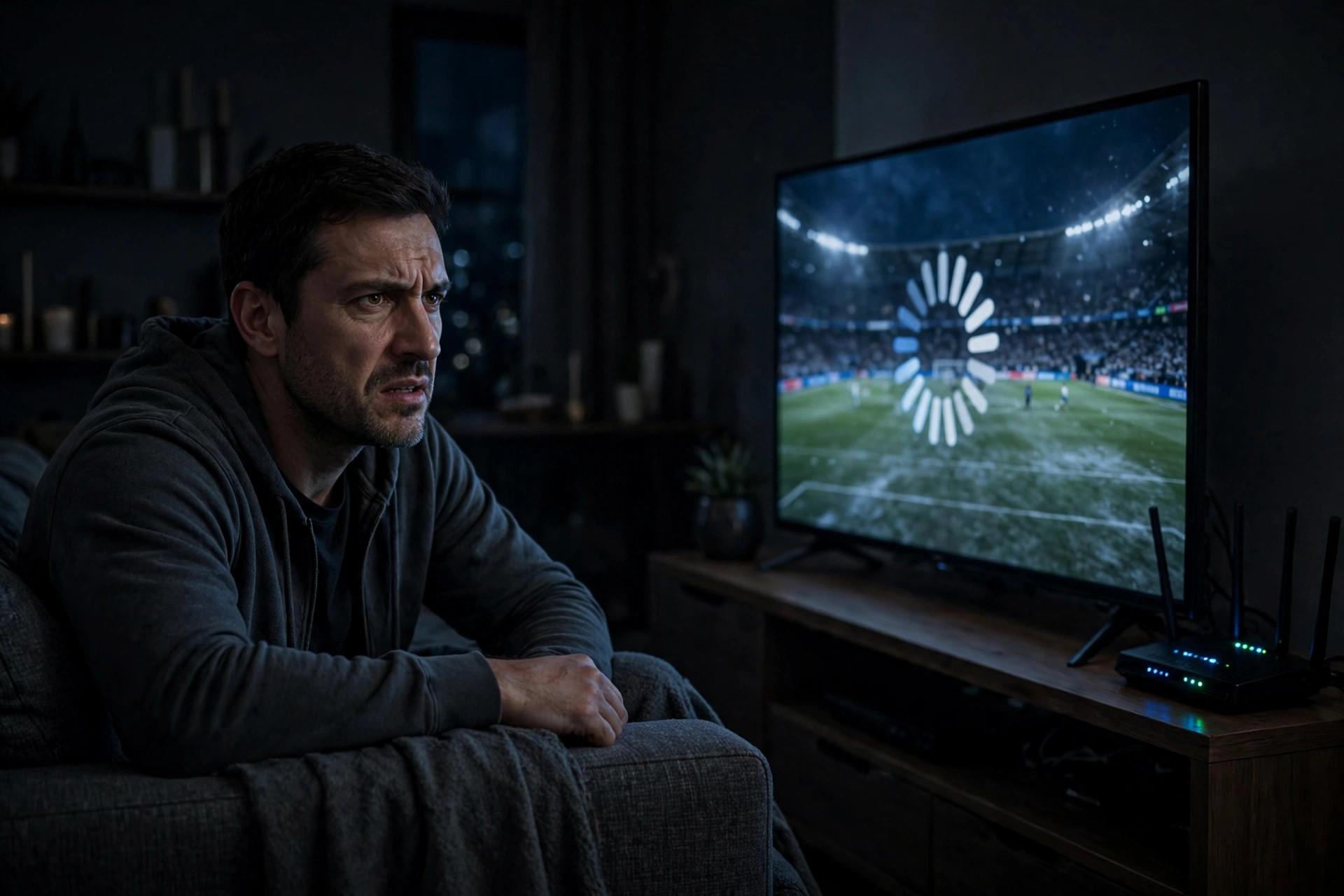
People searching for IPTV buffering fix New Zealand usually want one thing: the freezing to stop before the next All Blacks test. Buffering is the complaint that ends more IPTV trials than any other, and it is also the most fixable. The picture freezes, the circle spins, and the household blames the subscription — but the cause is usually sitting in the same room: a router two walls away, a Firestick on the crowded 2.4 GHz band, or an app that has not been restarted in a month. This guide works through the causes in order, from the thirty-second fix to the call to your broadband provider.
Start with the number that matters: a 4K stream needs about 25 Mbps steady, an HD stream needs about 8 Mbps, and a household with two TVs going needs both at once. New Zealand fibre through Chorus delivers 100 Mbps, 300 Mbps or 1 Gbps to most homes, so the fibre is rarely the bottleneck. The bottleneck is the hop from the router to the TV.
IPTV Buffering Fix New Zealand: Stop the Freezing
Restart the app first, then the device. Close the IPTV app properly, reopen it, and if the freeze repeats, restart the Firestick, Android TV box or Smart TV from the settings menu — not by pulling the power. A restart clears the app cache and the network stack, and it fixes more freezes than any other single step.
Then check the time. If the freeze happens at 7:30 on a Saturday during the rugby and never at midday, the cause is peak-time load — either your Wi-Fi is crowded or the server is busy. Switch to the HD feed of the same channel: if HD plays clean while 4K stutters, the connection is the limit, not the service. Check your fibre speed first before you change anything else.
Wi-Fi is the cause in most NZ homes
The 2.4 GHz band reaches through walls, but it is slow and crowded — every neighbour's router, every Bluetooth speaker and every microwave is on it. The 5 GHz band is faster and emptier, but it does not reach as far. If the router is in the same room as the TV, 5 GHz wins every time. If it is two rooms away, the answer is not a better Wi-Fi band — it is a cable, or a mesh node in the lounge.
Ethernet is the fix that ends the argument. A cable from the router to the TV or Firestick adapter removes the Wi-Fi from the equation entirely, and a 4K stream on Ethernet is as stable as the fibre itself. If a cable is not practical, a mesh Wi-Fi system with a node in the lounge is the next best thing — Spark, One NZ and 2degrees all sell them, and they cost less than a month of a Sky box.
Fibre, Spark, One NZ and 2degrees: what to check
Run a speed test on the TV itself, not on your phone in the kitchen. Most Smart TVs and Firesticks have a speed test in the app store, or open one in the Silk browser. If the TV gets 25 Mbps or more, the connection is fine and the problem is elsewhere. If it gets under 10 Mbps while the phone in the same room gets 100 Mbps, the TV's Wi-Fi chip is the limit — use Ethernet or move the router.
Check the plan, not just the speed. A 100 Mbps fibre plan handles two 4K streams easily, but a 50 Mbps plan with four people streaming, gaming and on video calls does not. If the household is heavy, the 300 Mbps plan is usually only a few dollars more a month. And check the router itself: a router supplied five years ago may not handle Wi-Fi 6, and a Firestick 4K Max on an old router is a fast car on a gravel road.
When buffering is the server, not your house
Sometimes the house is fine and the server is the problem. The test is simple: if every channel freezes at the same time, and the speed test on the TV is good, message support on WhatsApp with the channel, the time and the error. A server switch takes under a minute, and support can move a household to a quieter server while the match is still on.
The honest way to tell the difference is the free trial. Run it on a Friday or Saturday evening, watch a full match, and see whether the picture holds. A service that survives a Saturday night on your fibre will survive the season. Start a free trial and test it on the next match before you pay anything. See the plans and prices before the next match.
The 10-minute diagnosis: a step-by-step check
Buffering has a cause, and the cause can be found in ten minutes if the checks run in order, from the cheapest fix to the most expensive. Start with the app: close the IPTV app properly, reopen it, and watch the same channel for two minutes. If the freeze repeats, restart the Firestick, Android TV box or Smart TV from the settings menu — not by pulling the power — because a restart clears the app cache and the network stack, and it fixes more freezes than any other single step. Then check the time: if the freeze happens at 7:30 on a Saturday during the rugby and never at midday, the cause is peak-time load, and the next checks are the Wi-Fi and the feed quality, not the subscription.
The second check is the feed quality. Switch to the HD feed of the same channel: if HD plays clean while 4K stutters, the connection is the limit, not the service, because a 4K stream needs about 25 Mbps steady and an HD stream needs about 8 Mbps. The third check is the speed test on the TV itself, not on the phone in the kitchen — most Smart TVs and Firesticks have a speed test in the app store, or open one in the Silk browser. If the TV gets 25 Mbps or more, the connection is fine for 4K and the problem is elsewhere. If it gets under 10 Mbps while the phone in the same room gets 100 Mbps, the TV Wi-Fi chip is the limit, and Ethernet or a mesh node is the fix. The fibre speed guide shows how to run the speed test properly, and the Firestick guide covers the device settings.
- Restart the app, then restart the device from the settings menu
- Switch to the HD feed — if HD plays clean, the connection is the limit
- Run a speed test on the TV itself, at 7:30 pm, not at midday
- Check the Wi-Fi band — 5 GHz in the same room, Ethernet if the router is far
- Message support on WhatsApp with the channel, the time and the error
Mesh Wi-Fi and the lounge node
Mesh Wi-Fi is the fix that ends the buffering argument in most New Zealand homes, because the problem is usually distance, not speed. The fibre delivers 100 Mbps to the router in the hallway, and the TV in the lounge two rooms away gets 12 Mbps through two walls — which is the whole story. A mesh system puts a node in the lounge, and the node talks to the router on a clean backhaul while the TV talks to the node at full speed. Spark, One NZ and 2degrees all sell mesh systems, and they cost less than a month of a Sky box. The node goes in the lounge, near the TV, not in the hallway beside the router — a node next to the router fixes nothing, and a node in the lounge fixes everything.
The mesh node is the answer for the houses where a cable is not practical: a rental where the landlord will not allow holes in the wall, an apartment in the Auckland CBD where the router is in the hallway and the TV is two rooms away, a Wellington villa with thick walls and a router in the wrong room. Ethernet is still the best fix where a cable is possible — a cable from the router to the TV removes the Wi-Fi from the equation entirely, and a 4K stream on Ethernet is as stable as the fibre itself — but the mesh node is the next best thing, and it is the fix that works in most flats. Ask for the mesh when you sign up for a new broadband plan, because it is often discounted with the plan, and the fibre speed guide shows how to test the difference the node makes.
Peak time: Saturday 7:30 and what it does
Saturday 7:30 pm is the hardest hour of the week for every part of the chain, and it is worth understanding why. The All Blacks are kicking off at Eden Park, the Warriors are playing in the NRL, the Premier League is on in the small hours, and half the country is streaming the same match at the same time. The fibre into the house is fine — Chorus delivers 100 Mbps or more to most homes — but the Wi-Fi in the lounge is carrying the TV, the phones, the laptops and the gaming console all at once, and the 2.4 GHz band is carrying the neighbour's router, the Bluetooth speaker and the microwave as well. The 5 GHz band is faster and emptier, but it does not reach as far, so the router in the hallway and the TV in the lounge are the problem, not the service.
The peak-time test is the honest test of a service, and it is the reason the free trial should run on a Friday or Saturday evening, not a Tuesday morning. Watch a full match at peak time, and see whether the picture holds through the second half. A service that survives a Saturday night on your fibre will survive the season, and a service that stutters on fibre at 7:30 pm will only get worse on a busy night. If the picture freezes at peak time and never at midday, switch to the HD feed and check the Wi-Fi first — the TiviMate guide shows the player settings that matter, and the Smarters Pro guide shows the same for the other player.
Buffering on one channel vs every channel
The distinction that tells you where the problem lives is the simplest one: one channel, or every channel. If one channel freezes and the rest play clean, the problem is that channel — the feed, the server carrying it, or the source — and the fix is a message to support on WhatsApp with the channel name and the time, because a server switch takes under a minute and support can move a household to a quieter server while the match is still on. If every channel freezes at the same time, the problem is the house — the Wi-Fi, the router, the plan or the app — and the fix is in the lounge, not on the server. The speed test on the TV is the check that separates the two: a good speed test with every channel freezing points at the service, and a bad speed test with one channel freezing points at the house.
The other distinction is the time. A freeze that happens at 7:30 on a Saturday and never at midday is peak-time load, and the fix is the Wi-Fi or the feed quality. A freeze that happens at any time, on any channel, is the app or the device — clear the cache, restart the device, and check the storage, because a full Firestick slows down and the EPG stops updating. A freeze that happens on one device and not another is the device — the phone on mobile data plays clean while the TV on Wi-Fi freezes, which means the TV Wi-Fi chip is the limit. Run the checks in order, write down what you find, and the answer takes ten minutes. The free trial is the honest way to tell the difference: run it on a Friday or Saturday evening, watch a full match, and see whether the picture holds before you pay anything.
If the house is fine and the server is the problem, support is the answer, not a new router. Message support on WhatsApp with the channel, the time and the error, and the fix is usually a server switch that takes under a minute — which is the reason the trial tests the support line as well as the picture.